FAQ
Frequently Asked Questions
Our Products
You will receive a permanently valid license, meaning it is a one-off cost. You are not entering into a subscription or paying any annual fees; instead, you can use the software for as long as you possess the license key!
Yes. Should you be interested in any further Microsoft products that are not listed in the shop, you can also contact us. Almost all Microsoft products are available.
Visio is an innovative solution for easily visualising data-connected business process flows, supported by the many powerful features in Microsoft 365. In Microsoft Teams, you can easily design, retrieve and collaboratively edit Visio diagrams.
Yes. Should you be interested in any further Microsoft products that are not listed in the shop, you can also contact us. Almost all Microsoft products are available.
Yes, Office 2021 is backwards compatible and can open, edit and save documents created with earlier versions of Office. However, new features in Office 2021 may not be available in earlier versions.
Yes, Office 2024 is backwards compatible and can open, edit and save documents created with earlier versions of Office. However, new features in Office 2024 may not be available in earlier versions.
Compared to older versions, Windows 11 offers a new and very clear interface. Additionally, this operating system provides numerous functionalities that significantly improve workflow. Furthermore, enhanced security is offered thanks to modern features. Windows 11 is designed to get more done with less stress. Therefore, the upgrade can be worthwhile for any user who currently owns Windows 10 or one of the many older versions.
CAL stands for “Client Access License”. It is a license that grants users or devices the right to access the services or functions of a server. CALs are particularly relevant in the context of Microsoft server products such as Windows Server, SQL Server, Exchange Server, and many others.
There are two main types of CALs:
1. User CALs (Client Access Licences): This type of licence authorises a specific user to access the server from any device (for example, a workstation, a home PC, a smartphone, etc.).
2. Device CALs: This type of licence grants a specific device the right to be used by any number of users to access the server. This option can be more cost-effective if multiple users share the same workstation or device to access the server.
The choice between User CALs and Device CALs depends on the specific usage scenario within a company or organisation. Microsoft offers these flexible licensing options to cater to different business models and working methods.
CALs are necessary because Microsoft's server operating systems and some other server products are licensed based on the principle of access licences. This means that in addition to the licence for the server itself, additional licences are required to legalise access to that server.
While MS Planner is better suited for small and medium-sized projects, MS Project really comes into its own with large projects, comprehensive ERP resource planning, or the linking of multiple independent projects.
As we source large quantities from major companies and various European retail channels, we can keep prices extremely low in most cases. Additionally, we deliver all our products digitally, thereby eliminating associated shipping costs.
Yes, the traditional Office 2021 package includes the local versions of Word, Excel, PowerPoint and Outlook. From the Professional Edition onwards, Access and Publisher are also included.
Yes, the traditional Office 2024 package includes the local versions of Word, Excel, PowerPoint and Outlook. From the Professional Edition onwards, Access and Publisher are also included.
The difference between Professional Plus and Microsoft Office Standard lies in the applications included. Whilst Office Standard offers the same basic package as Office Professional, Access and Publisher are not included in Office Standard.
We only supply legitimate activation keys, so all our activation codes comply with European legislation and originate from the EU. You will also receive an invoice including VAT and proof of origin for this.
Only the product key for software activation and the installation guide will be sent via email. Discs or COA (Certificate of Authenticity) will not be dispatched.
The products offered have been checked within the framework of trade control obligations.
Microsoft Office 2021 Professional Plus is available as a comprehensive productivity suite from Microsoft. This suite contains a wide range of applications. These include Word, Excel, PowerPoint, OneNote, Outlook, Teams, Publisher and Access – everything you need to succeed in a professional environment.
Office 2021 Professional Plus includes Word, Excel, PowerPoint, Outlook, OneNote, Publisher, Access and Teams.
Office 2024 Professional Plus includes Word, Excel, PowerPoint, Outlook, OneNote, Publisher, Access and Teams.
Windows 10 offers complete flexibility in installing applications from any source, whereas Windows 10 S only allows apps from the Microsoft Store to enhance security and performance.
Known error messages
New Windows Feature: Update all installed programmes from the console with Windows 10/11 (Winget)
winget is a package manager for Windows that allows users to install, update, and manage software from the command line. It was developed by Microsoft and is part of the Windows Package Manager. With winget, users can view a list of available packages, install specific software packages, update already installed software, and perform many other actions, all through simple command-line commands. It is similar in its functionality to other package managers such as APT for Debian-based systems or YUM for Red Hat-based systems, but is specifically optimized for Windows.
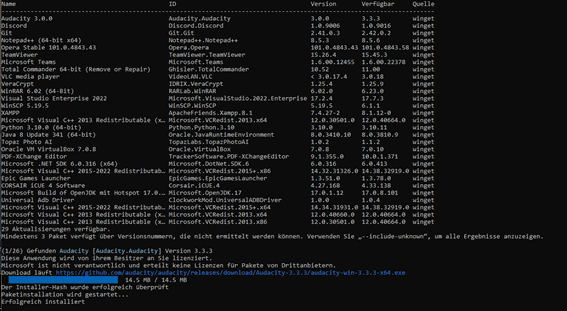
To update all installed programs on your Windows 10 or Windows 11, simply enter the following command:
winget upgrade –all
To update all installed programs on your Windows 10 or Windows 11, simply enter More information and other commands: https://learn.microsoft.com/de-de/windows/package-manager/winget/
If you have purchased a Windows product that requires telephone activation, we would like to provide you with instructions on how to proceed.
1. Press the key combination [Windows] + [R] (alternatively, click the Start icon, type CMD, and press Enter) and enter the command “slui 4” in the Run dialog box.
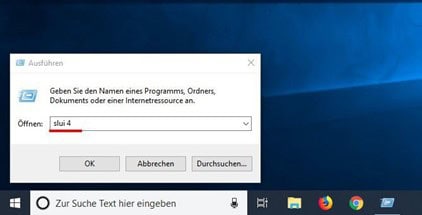
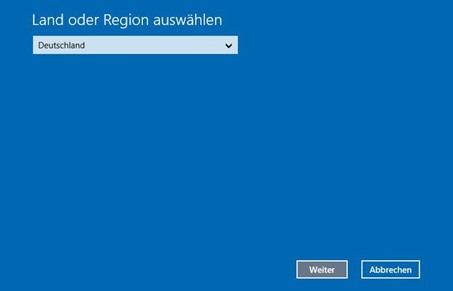
A new window will open. Select the entry “Deutschland” from the dropdown menu and click “Weiter”.
2. A new window will open. Select the appropriate country for you from the dropdown menu and click “Next”.
3. An installation ID with nine number blocks will appear. Above it, you will find a phone number to call.
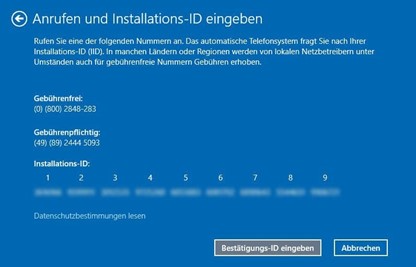
4. If you wish to perform the telephone activation yourself: A voice prompts you to enter the number blocks using your phone's keypad. You will then receive a confirmation ID with blocks A to H. Please write this number down on a piece of paper.
5. Then click the “Enter Confirmation ID” button and enter the ID you just received.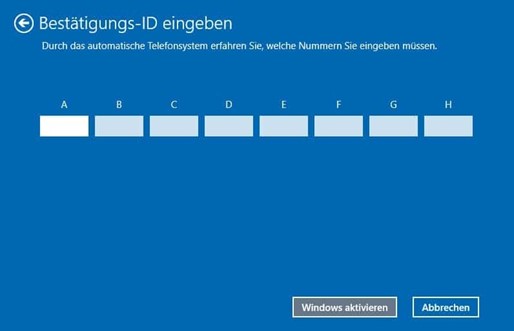
6. Complete the activation process using the „Activate Windows” button.
7. Finished. We hope you enjoy your product.
To activate your Windows 10 or Windows 11 via the command line, please open the command line as an administrator. Click Start and type CMD, then right-click on „Run as administrator”.
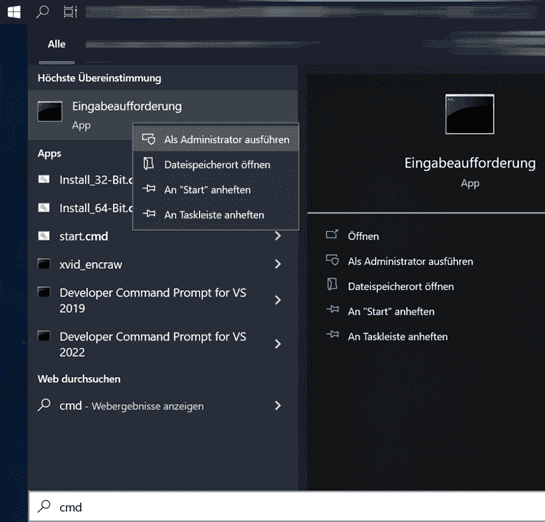
Enter the following at the command prompt, replacing XXXXX with your product code: slmgr /ipk XXXXX and activate with: slmgr /ato
Error code: 0x803fa067
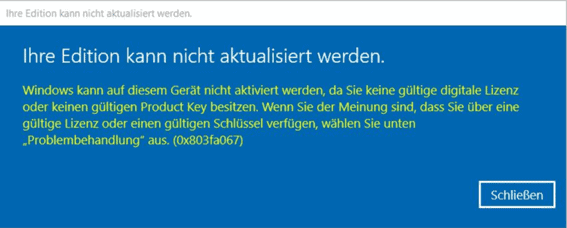
This error often occurs when you try to upgrade from Windows 10 Home to Professional, or if your Home version has already been activated/linked with a digital license.
Option 1: Upgrade via console
Please start the command line with administrator rights: Click on Start or the Windows icon (alternatively, you can press the Windows key on your keyboard) in the taskbar, type CMD, right-click on “Command Prompt”, and select “Run as administrator“. The command line/console should now open with elevated administrator rights.
Enter the following command to check which editions you can upgrade to:
DISM /Online /Get-TargetEditions
mit
DISM /Online /Get-CurrentEdition
Can you check which version you currently have installed.
To upgrade to a higher version, for example from Home to Pro, please enter the following:
changepk.exe /produkey VK7JG-NPHTM-C97JM-9MPGT-3V66T
The upgrade process is starting now, please wait until it is complete. This key cannot be used to activate Windows 10 Pro, only to upgrade from Home to Pro. After a successful upgrade, you can now activate your Professional version with the product key purchased from us.
Further generic keys, for other Windows editions, to which an upgrade can be made (Windows automatically recognises which edition is hidden behind the product code):
Windows 10/11 Home: YTMG3-N6DKC-DKB77-7M9GH-8HVX7
Windows 10/11 Home N: 4CPRK-NM3K3-X6XXQ-RXX86-WXCHW
Windows 10/11 Pro: VK7JG-NPHTM-C97JM-9MPGT-3V66T
Windows 10/11 Pro N: 2B87N-8KFHP-DKV6R-Y2C8J-PKCKT
Windows 10/11 Pro for Workstations DXG7C-N36C4-C4HTG-X4T3X-2YV77
Windows 10/11 Pro N for Workstations WYPNQ-8C467-V2W6J-TX4WX-WT2RQ
Windows 10/11 S (Only up to Windows 10 1803) 3NF4D-GF9GY-63VKH-QRC3V-7QW8P
Further:
Windows Team (PPIPro) = XKCNC-J26Q9-KFHD2-FKTHY-KD72Y
Windows Cloud (cloudedition) = KY7PN-VR6RX-83W6Y-6DDYQ-T6R4W
Windows Cloud N (cloudeditionn) = K9VKN-3BGWV-Y624W-MCRMQ-BHDCD
IoT Enterprise: = MNMRC-69F8V-2FCXX-GFQVY-BXQ3X
IoT Enterprise S: = JH8W6-VMNWP-6QBDM-PBP4B-J9FX9
CloudE = KD69N-VWMRK-Y9KBG-FCBM3-KF7QX
Andromeda= C9PDN-TR2KB-MR4DF-3RQ7Y-88HFF
ProfessionalEducation= 8PTT6-RNW4C-6V7J2-C2D3X-MHBPB
Professional Education
ProfessionalStudent= V3NH2-P462J-VT4G4-XD8DD-B973P
Education=YNMGQ-8RYV3-4PGQ3-C8XTP-7CFBY
EducationN=84NGF-MHBT6-FXBX8-QWJK7-DRR8H
Enterprise= XGVPP-NMH47-7TTHJ-W3FW7-8HV2C
EnterpriseS= NK96Y-D9CD8-W44CQ-R8YTK-DYJWX
EnterpriseSEval= JBGN9-T2MH3-2YV7W-WBWHM-FGFCG
WGGHN-J84D6-QYCPR-T7PJ7-X766F
EnterpriseSNEval= 7M88N-MTVMR-VC46G-4K4R6-KTQF7
Insider Keys Server vNext (LTSC)
Server Standard: MFY9F-XBN2F-TYFMP-CCV49-RMYVH
Datacenter: 2KNJJ-33Y9H-2GXGX-KMQWH-G6H67
Insider Keys Server
Server Standard: V6N4W-86M3X-77X3J-6XWF6-9PRVD
Server Datacenter: B69WH-PRNHK-BXVK3-P9XF7-XD84W
Option 2: Upgrade using Generic Key
Warning: The upgrade may not be smooth with every OEM key. If Windows complains that a product key is not suitable, the following may help: Microsoft has released a generic product key that can be used to upgrade from Home to Pro edition as described.
VK7JG-NPHTM-C97JM-9MPGT-3V66T
Should Windows display an error here, such as error code 0x803fa067, please repeat the process and briefly disconnect the internet connection, e.g. by removing the LAN cable, deactivating the LAN adapter, or by deactivating the Wi-Fi, and enter the code again.
However, this key cannot be used to activate Windows Pro, only to upgrade from Home to Pro. After a successful upgrade, you can now use the product key purchased from us to activate your Professional version.
Option 3: Offline activation
Disconnect your internet connection. Remove the network cable or disable Wi-Fi.
Press the WIN+R keys and type “SLUI” in the text field; the activation assistant should open. Enter the upgrade key and/or the Windows 10 Pro product key you received from us here.
Finished. Windows 10/11 Pro should now be active.
Please install the correct version of Office. You can access the correct software for the product code you have purchased via our downloads page.
Please note that older or newer versions must be removed before installation to rule out errors, e.g. during activation.
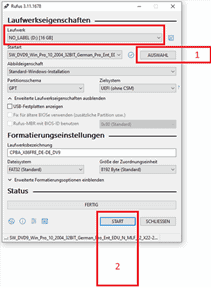
To create a bootable USB drive, you'll need a USB stick with at least 8GB capacity, an ISO or DVD image, and a special tool (Rufus).
Important: all data on the stick will be completely deleted during this process.
Follow these steps:
1. First, download the ISO or DVD image to your computer
2. Download the tool (Rufus) to your computer as well.
3. Plug in the USB stick
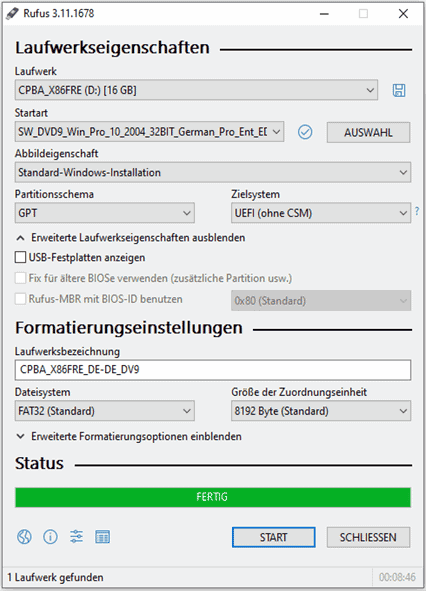
4. Start the tool (Rufus) by double-clicking the “rufus.exe” file – the tool will detect your USB stick
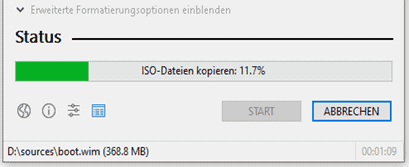
5. Click on “SELECT” and select the ISO file (#1 in Screenshot 1)
6. Click “START” to begin the process (#2 in Screenshot 1)
Confirm the warning message regarding overwriting the USB stick
8. Wait for the process to complete – this will be indicated by the message “FINISHED”.
9. Close the tool by clicking “CLOSE“
If you are experiencing an issue where the activation window always appears when you launch Microsoft Office, you should try the following troubleshooting steps to change or remove any product key that may be present but is locked or invalid, or to activate your product.
If you are unable to activate Microsoft Office via the standard activation screen, you should check whether a second key has already been entered in the background.
Step 1: Start the console (CMD) as an administrator
To do this, open the CMD as an administrator. Click on the Windows Start menu button (in older versions of Windows, this is called “Start”) and type CMD. You can then right-click and select “Run as administrator”.
Step 2: Navigate to the program directory
cd "C:\Program Files\Microsoft OfficeOffice16"„
Info
The name of the folder „Office16“ may vary depending on the programme version.
If you have installed the 32-bit version of Office, use the following path:
cd "C:Program Files (x86)Microsoft OfficeOffice16"„
Info
If cscript.exe cannot be found in either the „Program Files“ or „Program Files (x86)“ folder, try opening it from „C:Windowssystem32“. However, the path to OSPP.VBS must be adjusted.
Example
cscript C:\Program Files\Microsoft OfficeOffice16OSPP.VBS /dstatus
Step 3: Display installed keys
With the following command, you can view the current status of the installed keys:
cscript OSPP.VBS /dstatus
The output of the command contains, among other things, the following information:
How many keys are installed
Which version of Office is the key intended for?
Licence status
Last 5 digits of the installed key (Used for selection)
Should you find two keys active in this window, you should remove the inactive key.
Step 4: Remove keys
To remove an inactive key, use the following command:
Replace the „XXXXX“ fields with the last 5 digits of the key to be used. (This will be displayed in the „dstatus“ command under „Last 5 characters of installed product key:“).
cscript OSPP.VBS /unpkey:XXXXX
Step 5: Store new key
To register a new key, use the following command:
Replace „XXX...“ with the new key here.
cscript OSPP.VBS /inpkey:XXXXX-XXXXX-XXXXX-XXXXX-XXXXX
Step 6: Activate new product key
To perform the activation, use the following command.
cscript OSPP.VBS /act
This method currently works with all standard versions of Office up to version 2021. (Office 2003, 2007, 2010, 2013, 2016, 2019, 2021)
With these very simple steps, you can fix the problem:
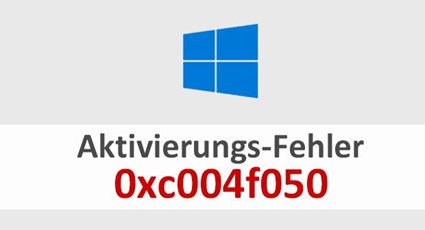
Should you receive the error: 0xC004f050:
Installation error. Follow the instructions in the following video:
1. Enter generic key: VK7JG-NPHTM-C97JM-9MPGT-3V66T
2. Turn off the internet and start the upgrade!! Restart the PC to do this.
3. After successful installation, please change to our key sent via email and restart the PC.
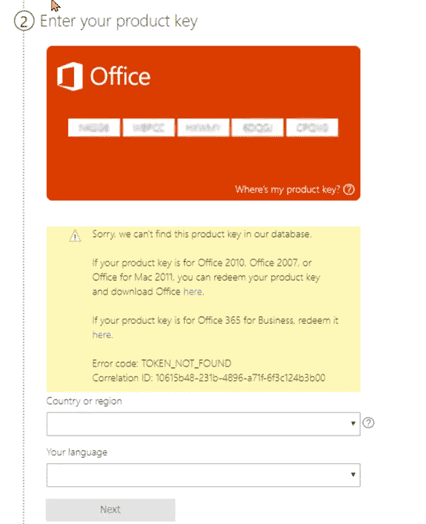
You must install the correct software and use the activation wizard for your Office product.
setup.office.com is intended for the activation of Home and Student versions and is not compatible with the product code you purchased.
Payment / Delivery
After a successful order, you will usually receive the key and download link immediately via email.
You can download the software directly from our download centre.
An invoice with VAT shown will be sent to you immediately after payment is received by email.
As we only sell keys for download products, you will not receive a physical disc.
We guarantee a successful activation.
If you experience any problems, please contact our support team, who respond 24/7, usually within a few minutes, but definitely within the same day.
The licence key can be found in the email that we sent to you. If you haven't received the email, please check your spam folder. If it hasn't arrived there either, please send us an email and we will resend the key to you!
With these payment methods, it may take some time for the payment to be credited by the payment provider and for the shop to receive confirmation. This process can usually take up to 24 hours, but this is not the norm. We will ship your goods as soon as we have received payment confirmation from the provider.
Our products are sent digitally immediately upon receipt of payment. Once we have confirmed receipt of payment, you will receive an email with all the necessary information for download, installation, and activation.
With Electronic Software Distribution (ESD), the customer purchases the software online, receives a download link and a product key via e-mail, downloads the software, installs it on their device, and finally activates it with the product key.
ESD stands for “Electronic Software Delivery”. It refers to the process by which software products are delivered digitally via the internet, rather than physically on data carriers such as DVDs or USB sticks. After purchase, customers receive a download link and, if applicable, a product key via email, which they can use to download and activate the software directly. This allows for quick availability and installation of the software without waiting for delivery.
We assure you that all our products are authentic as we are a legal distributor for Microsoft software. All our products come with a full lifetime product guarantee.
Please check your spam or junk folder beforehand. If you can't find anything there either, please contact us. We will take care of it immediately.
Unfortunately, it sometimes happens that typos appear in the email address or that email delivery has failed.
The activation codes will be sent immediately after payment via email. Occasionally, it may take a little longer than stated. This can have various causes, but please don't panic. It's on its way! If something does go wrong, just contact us!
TIP: Also check your spam folder!
Installation
Wenn die Online-Aktivierung fehlschlägt, versuchen Sie folgendes:
1. Internetverbindung überprüfen.
2. Firewall und Antivirus kurzzeitig deaktivieren.
3. Als Administrator ausführen.
4. Systemzeit richtig einstellen.
5. Microsofts Support- und Wiederherstellungsassistent nutzen.
6. Telefonische Aktivierung probieren.
7. Microsoft Support kontaktieren.
Ja, Microsoft Visio und Project sind mit Office-Paketen kompatibel, aber nicht in diesen enthalten und müssen separat erworben werden. Sie ergänzen Office-Anwendungen wie Word, Excel und PowerPoint und können neben diesen auf demselben Computer installiert werden. Achten Sie auf die Kompatibilität bezüglich der Version (Jahr und 32-Bit oder 64-Bit).
Beispiel 1: Visio 2013 Prof Plus mit Office 2016 Prof Plus -> nicht kompatibel somit sind beide Programme gleichzeitig auf einem System nicht nutzbar.
Beispiel 2: Visio 2013 Prof Plus mit Office 2013 Prof Plus -> kompatibel, beide Programme können ohne Probleme auf einem System installiert & genutzt werden.
Nein, dies ist nicht der Fall. Die Lizenz ist für beide Varianten gültig. Welche Sie wählen kommt auf Ihr Betriebssystem an. Am besten prüfen Sie vor der Installation welche Version besser für Sie in Frage kommt.
Falls Sie Probleme mit unserem Download-Link haben, zögern Sie nicht, unseren Kundenservice per E-Mail zu kontaktieren. Unser Kundenservice und Support ist 7 Tage die Woche, 24 Stunden am Tag verfügbar und wird Ihnen umgehend einen alternativen Download-Link senden.
Überprüfen Sie die Systemanforderungen, die auf unserer Download-Seite angegeben sind. Der erste Schritt zum Testen und Überprüfen der Softwarekompatibilität besteht darin, die Systemanforderungen der Software, die Sie installieren oder aktualisieren möchten, zu überprüfen. Die Systemanforderungen sind die minimalen Hardware- und Software-Spezifikationen, die Ihr Gerät benötigt, um die Software ordnungsgemäß auszuführen.
Der Zeitraum nach dem Download in den meisten Optionen ist auf 30 beziehungsweise 60 Tage begrenzt. Sie möchten die Office-Programme länger als die Testphase nutzen? Da müssen Sie Office mit einem Lizenzschlüssel aktivieren.
Meistens sind es nur Kleinigkeiten weshalb es zu Problemen kommt. Scheuen Sie sich nicht mit uns Kontakt aufzunehmen, unser technischer Support wird Ihnen gerne behilflich sein, bis das gekaufte Produkt voll funktionsfähig ist.
Falls erforderlich, wird das Produkt per Fernwartung installiert/konfiguriert.
Das Wechseln aus dem S Modus ist kostenlos. Öffnen Sie Einstellungen > Update und Sicherheit > Aktivierung auf dem PC, auf dem Windows 10 im S Modus ausgeführt wird. Wählen Sie im Abschnitt Zu Windows 10 Home wechseln oder Zu Windows 10 Pro wechseln die Option Zum Store.
Versuchen Sie es zunächst mit einem alternativen Browser. Sollte das nicht helfen, so deaktivieren Sie bitte für den Zeitraum des Downloads Ihren Virenschutz bzw. die Firewall. Alle Installer/Images stammen direkt von Microsoft und enthalten keinerlei Viren, Malware, etc., das garantieren wir!
Vor einem Upgrade auf Windows 11 sollten Sie folgende Schritte beachten:
1. Kompatibilität überprüfen: Nutzen Sie das Tool „PC-Gesundheitscheck“ von Microsoft, um sicherzustellen, dass Ihr PC die Systemanforderungen erfüllt.
2. Daten sichern: Sichern Sie wichtige Dateien auf einem externen Laufwerk oder in der Cloud.
3. Updates installieren:Aktualisieren Sie Ihr aktuelles Betriebssystem und alle Treiber auf die neueste Version.
4. Softwarekompatibilität prüfen:Stellen Sie sicher, dass Ihre Anwendungen mit Windows 11 kompatibel sind.
5. Speicherplatz freigeben: Stellen Sie sicher, dass genügend Speicherplatz für das Upgrade vorhanden ist.
6. Systemwiederherstellungspunkt erstellen:Für den Fall, dass Probleme auftreten, ist es sinnvoll, einen Wiederherstellungspunkt zu setzen.
Diese Schritte helfen, das Upgrade reibungslos durchzuführen.
Nein, Windows 11 kann nicht auf jedem Computer installiert werden, da es spezifische Systemanforderungen hat. Einige der wichtigsten Anforderungen sind:
– Ein kompatibler 64-Bit-Prozessor mit mindestens 1 GHz und 2 oder mehr Kernen
– Mindestens 4 GB RAM
– Mindestens 64 GB verfügbarer Speicherplatz
– Ein DirectX 12 kompatibles Grafikgerät mit WDDM 2.x
– Ein Display mit einer Mindestauflösung von 720p, größer als 9 Zoll diagonal, mit 8 Bits pro Farbkanal
– UEFI-Firmware mit Secure Boot-Fähigkeit
– TPM (Trusted Platform Module) Version 2.0
PCs, die diese Anforderungen nicht erfüllen, können Windows 11 nicht ausführen. Microsoft bietet ein Tool namens „PC-Gesundheitscheck“ an, mit dem Sie überprüfen können, ob Ihr aktueller PC mit Windows 11 kompatibel ist.
Es dürfen keine weiteren bzw. älteren Office Anwendungen auf Ihrem System installiert sein. Wenn Sie Probleme bei der Installation von Office haben, versuchen Sie Folgendes:
1. Als Administrator ausführen: Installationsdatei mit Rechtsklick > „Als Administrator ausführen“.
2. Antivirus deaktivieren: Temporär Ihr Antivirus-Programm ausschalten und Installation erneut versuchen.
3. Internetverbindung prüfen: Eine stabile Verbindung ist wichtig.
4. Office deinstallieren und neu installieren: Bestehende Office-Installationen entfernen und das Paket neu installieren.
5. Systemupdates durchführen: Betriebssystem aktualisieren.
6. Speicherplatz überprüfen: Genug Speicherplatz für die Installation sicherstellen.
7. Fehlermeldungen suchen: Bei spezifischen Fehlern die Office-Supportseite konsultieren oder Microsoft-Support kontaktieren.
Um ein neues Betriebssystem auf einem PC ohne Betriebssystem zu installieren, gehen Sie wie folgt vor:
1. Wählen Sie ein Betriebssystem aus (z.B. Windows oder Linux).
2. Laden Sie das Betriebssystem als ISO-Datei herunter und speichern Sie es auf einem USB-Stick, um einen bootfähigen USB-Stick zu erstellen. Für Windows nutzen Sie das “Windows Media Creation Tool”.
3. Starten Sie Ihren PC neu und drücken Sie eine Taste (oft F2, F10, oder DEL), um ins BIOS oder UEFI zu gelangen. Ändern Sie die Einstellung, sodass der PC von Ihrem USB-Stick startet.
4. Folgen Sie den Installationsanweisungen auf dem Bildschirm. Wählen Sie, wo das Betriebssystem installiert werden soll, und geben Sie notwendige Informationen ein.
5. Beenden Sie die Installation und starten Sie den PC neu. Entfernen Sie den USB-Stick, damit der PC mit dem neuen Betriebssystem hochfährt.
Nun ist das neue Betriebssystem installiert und bereit zur Einrichtung.
Die Aktivierung bestätigt die Echtheit Ihrer Softwarekopie und stellt sicher, dass sie gemäß den Lizenzbedingungen verwendet wird. Sie erfolgt meist durch Eingabe eines Produkt- oder Lizenzschlüssels und ermöglicht den vollen Zugriff auf alle Funktionen und Updates der Software.
Eine 1 PC-Lizenz erlaubt die Nutzung der Software auf einem einzigen Computer, während eine 2 PCs-Lizenz die Nutzung auf zwei Geräten ermöglicht. Der Hauptunterschied liegt also in der Anzahl der Computer, auf denen die Software installiert und aktiviert werden kann.
1 PC = 1 Betriebssystem / Gerät
2 PC = 2 Betriebssysteme / Geräte
Unser Service
Der Support für Einzelhandelsversionen von Office 2021 endet am 09. Oktober 2029; im Gegensatz zu älteren Office-Versionen gibt es keinen verlängerten Supportzeitraum.
Der Support für Einzelhandelsversionen von Office 2024 endet am 9. Oktober 2029; im Gegensatz zu älteren Office-Versionen gibt es keinen verlängerten Supportzeitraum.
Wer den Umstieg auf ein neues Betriebssystem plant, möchte meistens nicht noch zusätzlich Geld ausgeben, um neue Software zu kaufen. Zwar ist Windows 11 günstig erhältlich, aber es sollten keine weiteren Kosten hinzukommen. In der Regel gibt es bezüglich der Kompatibilität der Software keine Probleme. Die meisten älteren Anwendungen werden auch auf dem Betriebssystem Windows 11 uneingeschränkt funktionieren. Bisher sind noch keine Softwarekomponenten bekannt, bei denen es Probleme geben könnte.
Sie können das ganz einfach nachprüfen: Öffnen Sie die Einstellungen von Windows 10 und navigieren Sie zum Bereich “Update und Sicherheit” > “Aktivierung”. Hier zeigt Windows 10 die installierte Edition und den Aktivierungsstatus an.
Offiziell kann Microsoft Edge nicht deinstalliert werden, da er tief in Windows integriert ist. Es wird empfohlen, einfach einen anderen Browser als Standard festzulegen, wenn Sie Edge nicht nutzen möchten. Fortgeschrittene Entfernungsversuche könnten das System beeinträchtigen.
Diese Fehlermeldung kann verschiedene Ursachen haben und tritt bei gebrauchten Keys aber auch bei überlasteten Aktivierungsservern auf.
Sie können Ihr Betriebssystem dennoch legal und problemlos mit Ihrem Lizenzschlüssel aktivieren. Kontaktieren Sie einfach unseren Kundenservice per E-Mail oder folgen Sie unserer Aktivierungsanleitung.
Microsoft Teams ist eine Messaging-App für Teams, in der alle Unterhaltungen, Besprechungen, Dateien und Notizen für alle an einem Ort zugänglich sind. Es ist ein Ort, an dem die Zusammenarbeit und die Arbeit offen stattfinden können. Die Oberfläche von Microsoft Teams erinnert an Chat-Clients für soziale Medien, wie Facebook oder Google Hangouts.
Wir sind bemüht unseren Kunden den bestmöglichen Service und Support zu bieten. Negative bzw. unfreundliche Nachrichten lösen keine Probleme. Sie können uns bei jeglicher Unzufriedenheit per E-Mail kontaktieren, wir sind kulant und entgegenkommend.
Ihre Zufriedenheit liegt uns am Herzen!
Wir bieten unsere Produkte in Englisch, Spanisch, Italienisch, Deutsch, Französisch an. Wenn die Sprache, die Sie möchten, nicht verfügbar ist, laden Sie das entsprechende Language Accessory Pack für die Sprache, die Sie verwenden möchten, von dieser Seite herunter:
Language Accessory Pack für Office https://support.microsoft.com/en-us/office/language-accessory-pack-for-microsoft-365-82ee1236-0f9a-45ee-9c72-05b026ee809f.
Das Language Accessory Pack enthält die Anzeige- und Korrekturwerkzeuge für die meisten Sprachen, aber Sie können trotzdem wählen, Ihre Anzeige in einer Sprache und das Bearbeiten oder Erstellen in einer anderen zu haben.
Office 2021 ist kompatibel mit Windows 10 und Windows 11. Es ist speziell dafür entwickelt, mit diesen neueren Versionen des Windows-Betriebssystems zusammenzuarbeiten, um Nutzern die bestmögliche Erfahrung zu bieten.
Office 2024 ist kompatibel mit Windows 10 und Windows 11. Es ist speziell dafür entwickelt, mit diesen neueren Versionen des Windows-Betriebssystems zusammenzuarbeiten, um Nutzern die bestmögliche Erfahrung zu bieten.
Zur Zeit bieten wir nur Office 2021 Home und Business an, das auf dem Mac funktioniert. Generell können Verbraucherkunden Microsoft Office 2021 für Windows und Mac erwerben, und Geschäftskunden können jetzt Microsoft Office LTSC für Windows und Mac kaufen. Office 2021 und Office LTSC 2021 sind die nächsten dauerhaften Veröffentlichungen von Office. Sie beinhalten Verbesserungen gegenüber Microsoft Office 2019 und früheren Versionen von Office vor Ort.
Zur Zeit bieten wir nur Office 2024 Home und Business an, das auf dem Mac funktioniert. Generell können Verbraucherkunden Microsoft Office 2024 für Windows und Mac erwerben, und Geschäftskunden können jetzt Microsoft Office LTSC für Windows und Mac kaufen. Office 2024 und Office LTSC 2021 sind die nächsten dauerhaften Veröffentlichungen von Office. Sie beinhalten Verbesserungen gegenüber Microsoft Office 2019 und früheren Versionen von Office vor Ort.
Bis April 2023 umfassen die macOS-Versionen:
1. OS X 10.0 Cheetah bis OS X 10.11 El Capitan
2. macOS 10.12 Sierra bis macOS 10.15 Catalina
3. macOS 11 Big Sur
4. macOS 12 Monterey
5. macOS 13 Ventura
Ab macOS 10.12 wurde von OS X zu macOS umfirmiert. Neuere Versionen können nach April 2023 verfügbar sein.
Unser Kundenservice ist 24/7 für Sie da und hilft Ihnen bei allen Fragen gerne und schnell weiter. Bitte senden Sie uns einfach eine E-Mail oder nutzen Sie unseren Chat, um mit uns in Kontakt zu treten.
In einigen Fällen bieten wir auch eine kostenlose Remote-Support-Sitzung an. Dabei verbinden wir uns aus der Ferne mit Ihrem PC, so dass wir das Problem so beheben können, als wären wir vor Ort. Sie können sicher sein, dass Sie jeden unserer Schritte mitverfolgen können. Um dies zu ermöglichen, verwenden wir die kostenlose Software AnyDesk.
Wenn Sie eine Großbestellung aufgeben möchten, senden Sie uns bitte eine E-Mail, in der Sie das gewünschte Produkt und die gewünschte Menge angeben. Wir werden Ihnen so schnell wie möglich antworten und Ihre Bestellung je nach Verfügbarkeit der Ware bestätigen.
Sie erhalten lebenslangen Support für die Produkte, die Sie auf unserer Website kaufen. Sie können uns also eine E-Mail an unser Kundendienstteam schicken und uns Ihre Fragen stellen. Wir werden dafür sorgen, dass die Probleme behoben werden.