
Microsoft Excel, part of the Microsoft Office Standard 2021 Excel is a powerful tool for managing and analyzing data. Understanding how to navigate and enter data efficiently is crucial for getting the most out of this application. This guide will help you get started with the basics of navigation and data entry in Excel.
1. Understanding the Interface
Before diving into navigation and data entry, it's essential to familiarize yourself with the Excel interface:
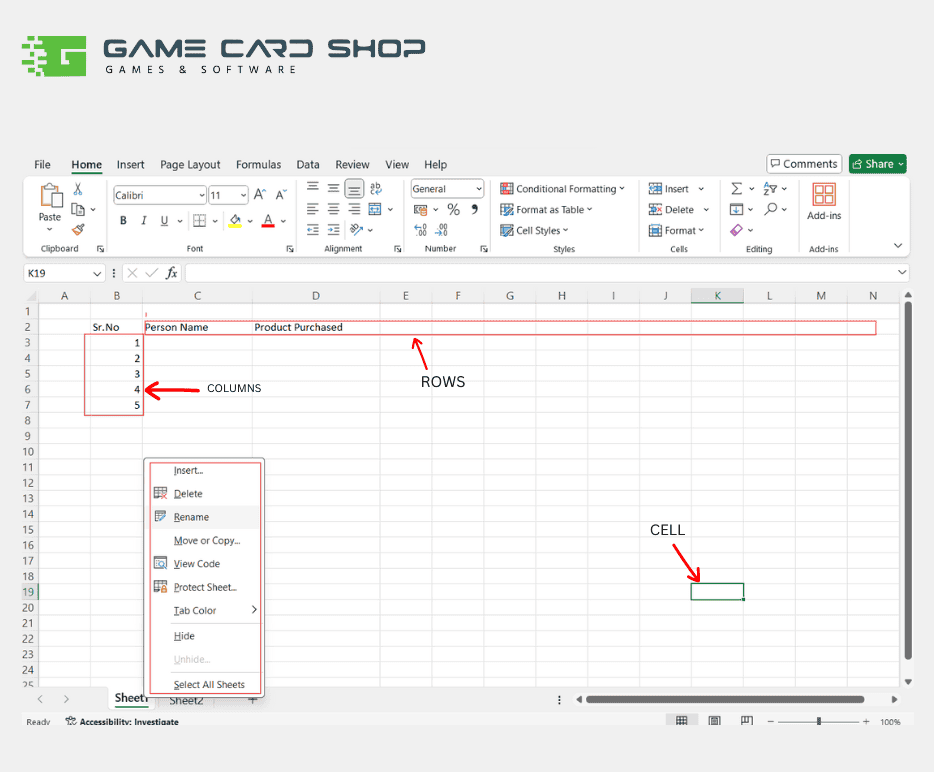
- Workbook and WorksheetsA workbook is the Excel file you create with Microsoft Office Standard 2021. Each workbook can contain multiple worksheets (or tabs). You can add, delete, or rename these sheets as needed.
- RibbonThis toolbar at the top of the window provides access to various functions and tools. It's divided into tabs such as Home, Insert, Page Layout, Formulas, Data, Review, and View, each containing related commands.
- Cells, Rows, and ColumnsExcel's grid layout consists of cells where you enter data. Rows run horizontally and are numbered, while columns run vertically and are labeled with letters.
2. Basic Navigation
Navigating through Excel efficiently will save you time and enhance your productivity:
- Using the MouseClick on any cell to select it. You can also click and drag to select multiple cells.
- Using the KeyboardThe arrow keys allow you to move up, down, left, or right one cell at a time.
- ScrollingUse the scroll bars on the right and bottom edges of the window to navigate large worksheets.
- Name Box and Go To FunctionThe Name Box, located to the left of the formula bar, displays the address of the selected cell. You can type a cell address here and press Enter to jump to that cell. Press F5 or Ctrl + G to open the Go To dialog box and enter a cell address or range to quickly navigate.
3. Entering Data
Data entry in Excel is straightforward, but knowing a few tips can make it even easier:
- Selecting a CellClick on a cell or use the arrow keys to select it.
- Typing DataSimply start typing to enter data. After typing, press Enter to move to the next cell down or Tab to move to the next cell to the right.
- Editing DataDouble-click a cell to edit its contents directly, or select the cell and use the formula bar to make changes.
- Copying and PastingUse Ctrl + C to copy and Ctrl + V to paste. You can also use the right-click context menus for these actions.
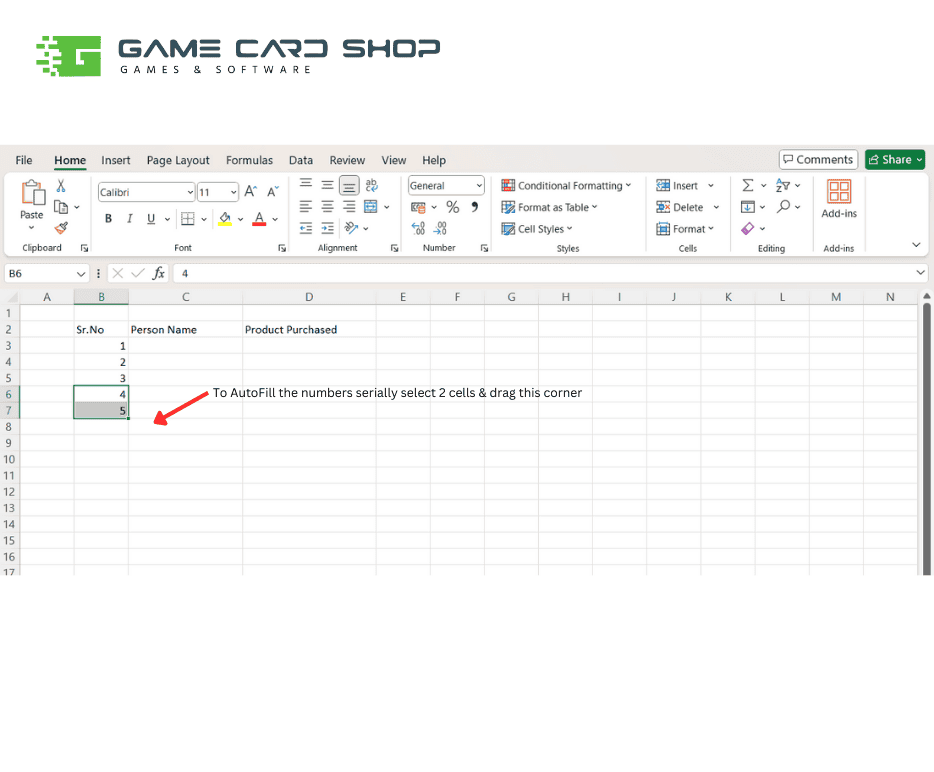
- AutoFillDrag the fill handle (a small square at the bottom-right corner of a selected cell) to fill adjacent cells with similar data, such as dates, numbers, or text patterns.
- Undo and RedoUse Ctrl + Z to undo your last action and Ctrl + Y to redo an undone action.
4. Formatting Cells
Properly formatting your data can improve readability and presentation:
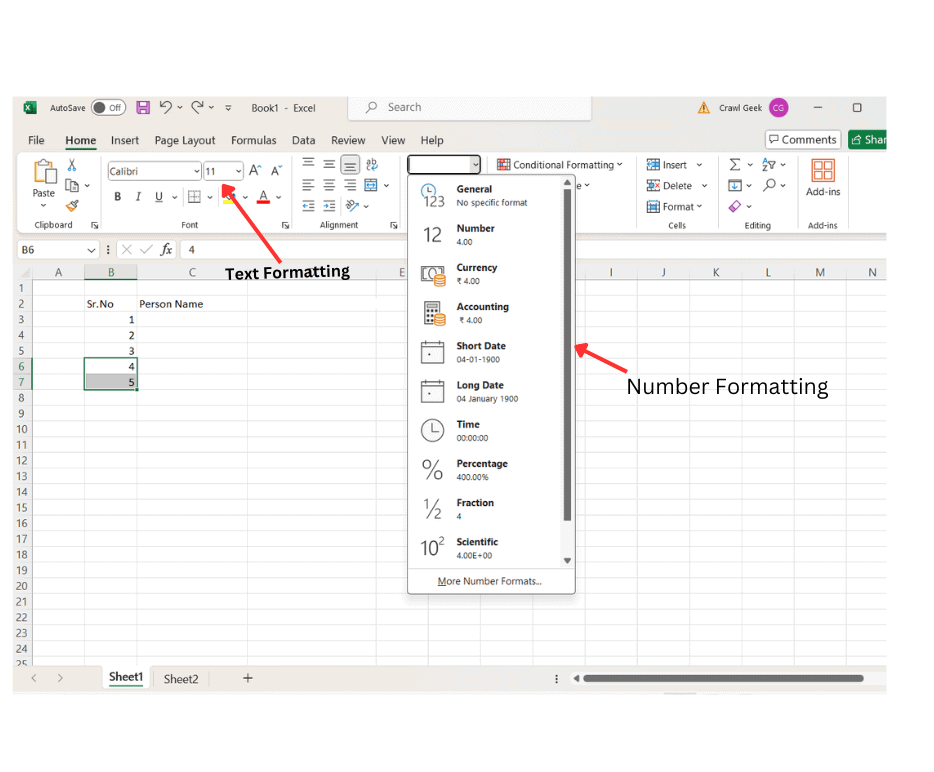
- Number FormattingUse the Home tab on the ribbon to apply number formats, such as currency, percentage, date, or time.
- Text FormattingAdjust font, size, color, and alignment from the Home tab to enhance the appearance of your text.
- Cell StylesApply predefined styles from the Home tab to quickly format cells with borders, shading, and fonts.
Conclusion
Mastering basic navigation and data entry in Microsoft Excel is essential for effectively managing and analyzing data. Microsoft Office Standard 2021 enhances these capabilities with its robust suite of tools, ensuring you can handle your tasks with ease and efficiency. Practice these skills regularly, and explore additional resources to continue improving your Excel proficiency.
Unlock the full potential of Microsoft Excel today! Ensure you have your Microsoft Office Standard 2021 product key ready and upgrade to a Microsoft Office Standard 2021 license for 3 PCs. Equip yourself with the essential tools for efficient data management and analysis across multiple devices.